Facebook Notes, News and Users Guide


Showing posts with label USER GUIDES. Show all posts

Sep 1, 2012

CHANGE YOUR RELATIONSHIP STATUS

1. Go to https://www.facebook.com

2. Log in with your username and password.

3. Go to your profile by clicking on your name on upper right corner.


4. Once on your Timeline, click on Update Info button.


5. Scroll down to find Basic Info box,and click edit.

6. Find Relationship Status section,and select desired one from drop-down box.


7. If you are changing your Relationship Status to one that includes option to select person with who it's going on,type that friend's name, or leave it blank.

8. Click Save button at lower right corner.

Then You are done, click like if this helped you

REMOVING FACEBOOK TIMELINE

BEFORE YOU CONTINUE READING, KEEP IN MIND THAT THERE IS NO ANY MEANS OF REMOVING OR DELETING TIMELINE ONCE YOU SWITCH TO USE TIMELINE, THE EXISTING METHODS OF USING BROWSER PLUGINS AVAILABLE HAVE NOTHING TO DO ABOUT YOUR FACEBOOK TIMELINE RATHER THAN CHANGING THE WAY WEBPAGES ARE DISPLAYED BY YOUR BROWSER AND THE SAID "TIMELINE" WILL BE SEEN BY ONLY YOU, NOT YOUR FRIENDS (BE CARE OF THESE SCAMS)
The Facebook timeline has not been well received by many. When it first rolled out it was often buggy, often jumping back up when attempting to scroll down, and the most recent posts being displayed to the left and right which many users found unintuitive. It was perhaps inevitable that users were going to be bombarded with claims that they could revert back to the older profile design.

Facebook Timeline

But is it possible to remove the timeline? And go back to the older Facebook design.
The answer depends very much on what you’re looking for and how you interpret the question.
The question we usually receive from our readers is “can you remove the timeline?”. The key word in this question is remove. In this case the answer is no. You cannot remove the timeline. There is no option in the Facebook settings to do that so don’t bother looking. No website, Facebook page, application or anything can remove the timeline. It represents the latest phase in the evolution that is the Facebook experience and Zuckerberg isn’t planning on leaving anyone behind.

Perhaps the more appropriate question you are looking for is can I hide the Facebook timeline from myself, in which case the answer changes to the affirmative.
What we mean by this is that there are options available to a user that lets them alter the way their Internet browser (IE, Firefox, Chrome for example) displays a webpage. These come in the form of browser extensions, which are small programs that “plugin” to your browser that enable it to do things it couldn’t normally do. Browser extensions are powerful tools that can essentially do anything when it comes to displaying a webpage. Since the timelines introduction a handful of popular extensions have come into the limelight, namely FBPurity, TimelineRemove or SocialFixer. HOWEVER these extensions only affect the way your browser on your computer displays a webpage. You haven’t removed the timeline, you’ve just hidden it from yourself. You still have the timeline, but your Internet browser is just masking it from you. It only works for the computer you’re on and the Internet browser you installed the extension on. Anyone visiting your profile will still see the timeline, unless they too have an extension installed.

Fake Timeline From FBPurity

From FBPurity’s Facebook page, a screenshot of the extension at work. Note the single column format.
Whilst the specific extensions we mentioned above have been around for some time now and appear legitimate it is worth noting that installing browser extensions should not be taken lightly because they can be potentially dangerous and are perfectly capable of installing malware onto a computer amongst other unwanted activities. It is for this reason that we implored our readers not to install the browser extensions that rogue Facebook applications were directing to recently that claimed to remove the timeline. These extensions could have potentially harboured malicious code that could have done any number of malevolent activities on your computer.

If you really want to hide the Facebook timeline from yourself, the ONLY way of doing this is by installing a legitimate browser extension designed to do just that (yes you can get your browser to act like a REALLY old unsupported browser but this is certainly not recommended because this will just be insanely buggy). Generally speaking we don’t really recommend doing it for a number of reasons. For one these extensions are not supported at all by Facebook meaning they may be buggy especially when Facebook updates itself. In fact Facebook doesn’t like these extensions at all (they recently blocked all links to FBPuritys website) especially when you consider many of these extensions are hiding Facebook advertisements – mess with Facebook’s revenue stream and they’re not going to be happy.

So there you have it. You can’t remove the timeline but you can get your computer to hide it from you. So if you really hate the timeline that much then head over to the websites we linked to above – they support all the major browsers. Don’t try and remove the timeline any other way though, because there are plenty of scams out there using timeline removal as bait to lure victims into falling for any number of dangerous scams.

Aug 26, 2012

HOW TO HIDE FRIENDS ON FACEBOOK

Facebook is the number one social website in the world on which millions of people visit each day. They look out for people. They send friend request to whom they know, check out profiles of people. Specially profiles of friends friend using the friend list. Sometimes few of my friends ask "Who is that guy in your friend list, he just sent me a friend request?" You also may have faced such situations one one of your friends sends a request to one of your friends using your friend list.

It's all about privacy. To avoid such situations, Facebook has given extreme privacy control option to everyone so that nothing from their profile can be misused. Fact, 90% of people don't know how to hide their friend list if I just ask now. Because they let it open for everyone and they don't ponder over such possibility. Using the steps below, you can set the friend list option to yourself, to friends, public and custom.

Here are the steps to hide or Limit the friend list view on your Facebook Profile:
  1. Log in to Facebook.
  2. Now Go to Your Profile.
  3. Now Click on Friends.
  4. A Windows opens showing all your friends on Facebook.
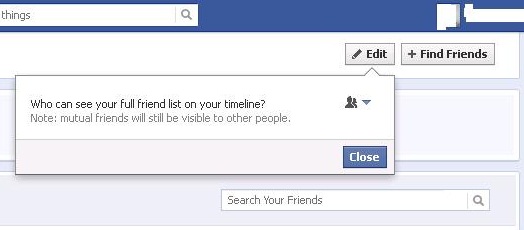
  5. Now, Look at the above right hand corner of friends window. You will an EDIT Option.
  6. Click on the Edit Option. 
  7. This Edit Option provides you the options like Friend list Visible to : Me, Friends friend, Public and Custom.
  8. Select Me.
  9. Once you select, no body will be able to see your friend list.
Hide or Remove you Facebook Friend List

 Drawbacks:
  • Nobody can suggest you friends.
  • The Call option from your profile will also become invisible.
However, I recommend to set it to friends only so that your friends can view your friends. Hope this will help you in hiding or disabling your friend list.

If you like the Post Please Share it With your Friends.

Jun 1, 2012

SEE ALL RECOGNIZED DEVICES IN FACEBOOK

To see the list of recognized devices, click the drop link next of home menu in your Facebook home, and click Account Settings.

 In account settings, click security menu on the left side,

In security settings page,  just click recognized devices, you will see the list of all recognized devices.

These are recognized devices:


SEE ALL ACTIVE SESSIONS

To see active sessions in your facebook account, click the drop link next of home menu in your Facebook home, and click Account Settings.

 In account settings, click security menu on the left side,

In security settings page,  just click Active Sessions 


You will be able to see the list of all active sessions of your account and realize if you did not use facebook in one of the mentioned locations.


ENABLE LOGIN NOTIFICATIONS IN FACEBOOK

To enable login notifications, click the drop link next of home menu in your Facebook home, and click Account Settings.


 In account settings, click security menu on the left side,


In security settings page,  just click Login Notifications


Then you will decide whether you want to be notified through email, or mobile text message or both of them.

Upon clicking Save Changes, you will be able to receive notifications concerning your account new logins.


ENABLE LOGIN APPROVAL IN FACEBOOK

To set login approval, click the drop link next of home menu in your Facebook home, and click Account Settings.


 In account settings, click security menu on the left side,


In security settings page,  just click Login Approvals.


If you have not set login approval, you will be asked to check the checkbox to enable this feature, if you check, the new dialogue will appear asking you to start set up where you will be asked to choose the mobile number where the login codes/numbers will be sent each time you use new device or if someone is trying to login to your account.


Lastly you will click save changes then you are done.

ENABLE SECURE BROWSING IN FACEBOOK

Enabling secure browsing in facebook helps you to use https which will helps you to send all information encrypted.

For any user of facebook whom security is a greater concern may use this service so as to stay secured always.

to enable facebook secure browsing,  click the drop link next of home menu in your Facebook home, and click Account Settings.

 In account settings, click security menu on the left side,

In security settings page, click secure browsing then you will be able to enable secure browsing by clicking the check box.
Click Save Changes and you are done.

SECURE YOUR FACEBOOK ACCOUNT

May 1, 2012

SET FACEBOOK SECURITY QUESTIONS

Security Questions will help you if it happen that you cant login to your Facebook account due to some security concerns, the security questions will prove that you are the real owner of the account.

To set security questions, click the drop link next of home menu in your Facebook home, and click Account Settings.

 In account settings, click security menu on the left side,

In security settings page,  just click Security Question


Then you will be able to answer the security question and be able to use this feature in facebook.


Type your password and click save changes then you are done:


Popular Posts

Copyright © FACEBOOK NOTES | Powered by Blogger